Practical publishing guide
How to publish Gemini-generated HTML as a website
Copy the complete HTML from Gemini, publish it as a standalone HTTPS page, and check it before sharing. You do not need GitHub, npm, a terminal, or a build tool.
Updated November 5, 2026
By the GeminiLaunch product team
Current Gemini sharing behavior and GeminiLaunch plan details reviewed for this update.
Short answer
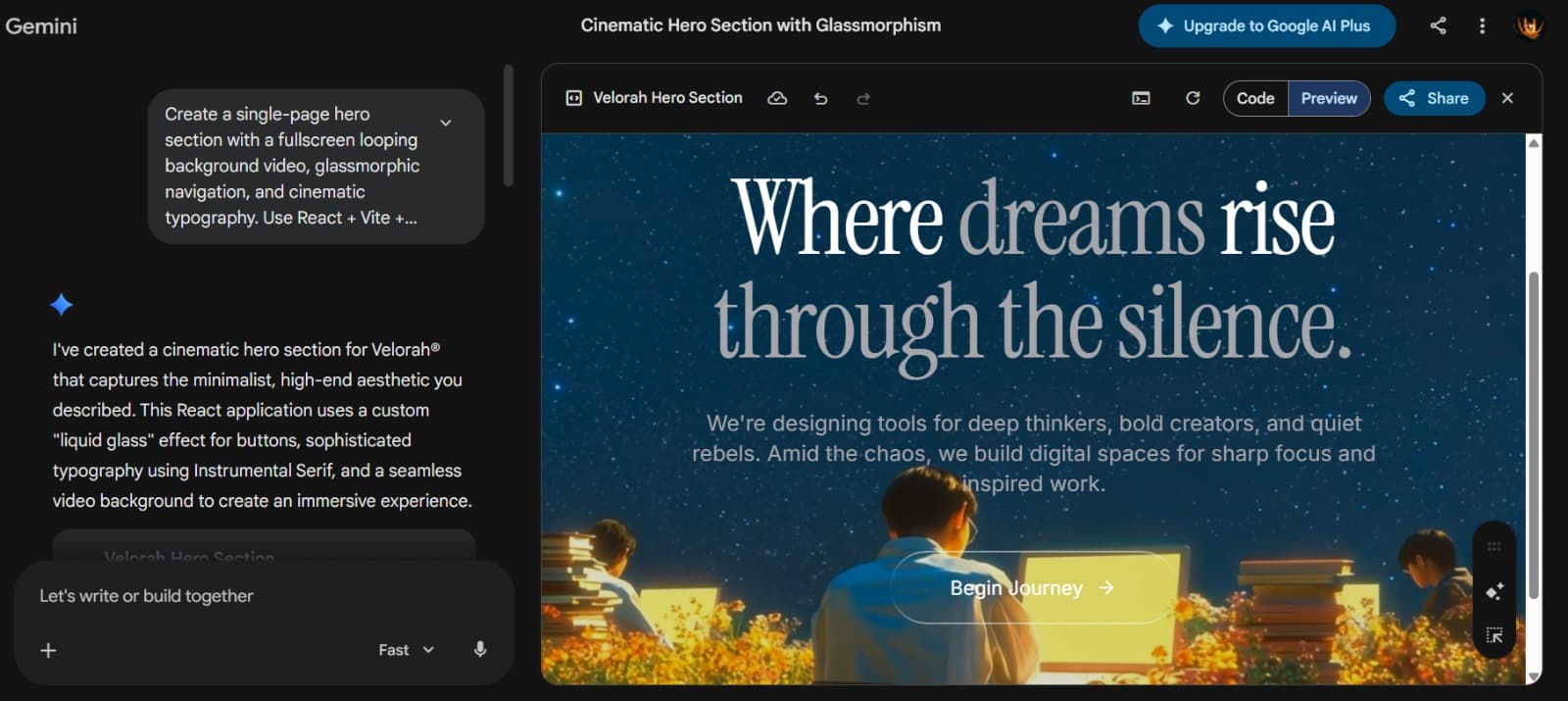
Yes, Gemini-generated HTML can become a real website. Ask Gemini for one self-contained HTML file, copy the complete code, paste or upload it to a static host, preview it, and publish. Gemini Canvas also offers a public share link, but external hosting gives you a standalone page and the option to use your own domain.
Choose the right link
Gemini share link or standalone website?
Google confirms that Canvas can create a public g.co/gemini/share link. Shared Canvas content opens on gemini.google.com, and people can copy it into their own Canvas. That is useful for collaboration; it is different from hosting a website.
| Option | What people open | Control | Best for |
|---|---|---|---|
| Gemini Canvas share link | A public g.co link inside Gemini | Gemini controls the experience and URL | A quick demo or collaboration |
| Hosted HTML website | A standalone HTTPS page | You control the page and can use your domain | Portfolios, landing pages, tools, and client work |
Five clear steps
How to publish Gemini HTML without coding
The safest workflow starts with portable code and ends with a real-device check.
Expected result: one public HTTPS page that opens without a Gemini account.
Step 1
Ask Gemini for one portable HTML file
Use the prompt below so Gemini returns a complete page with its CSS and JavaScript inside one HTML file. This avoids missing styles, local assets, and build-tool errors.
If Gemini gives you React, several files, or only a code fragment, ask again for one complete self-contained HTML document.
Step 2
Copy the complete code
Open Code view and copy everything from <!doctype html> to </html>. Do not copy the surrounding Markdown backticks or Gemini's explanation.
Keep a local backup as index.html if the page matters. The filename also makes it easier to move the page to another host later.
Step 3
Paste or upload it to GeminiLaunch
Create a project, paste the HTML into the editor, and check the preview. You can also upload a complete folder or ZIP when the project has separate images and files.
Never put passwords, private tokens, or API keys in browser HTML. Visitors can inspect any client-side code you publish.
Step 4
Publish the standalone website
Select Publish to receive a public HTTPS address that opens as a normal website. Share that viewing URL—not your Gemini conversation or editable project.
The free plan supports up to three live sites. Editing and republishing an existing site starts on Lite.
Step 5
Check the live page before sharing
Open the published URL on a phone and desktop. Test every button, link, image, form, and interactive element. Then check the page title and social preview.
A form can look correct without saving submissions. Confirm that it connects to a real form service or backend before collecting responses.
Copy-ready prompt
Ask Gemini for portable HTML
This prompt removes the most common causes of a broken first publish.
Give me this page as one complete, self-contained HTML file.

Requirements:
- Start with <!doctype html> and end with </html>.
- Put all CSS inside a <style> tag.
- Put all JavaScript inside a <script> tag.
- Do not use React, npm, a build step, local file paths, or secret API keys.
- Include a page title, meta description, UTF-8 charset, and mobile viewport.
- Make the layout responsive for phones, tablets, and desktops.
- Return the full file, not only the changed section.
Before you share
Check the live page, not only the preview
A preview can hide missing files, broken links, and mobile problems. Open the final URL and verify the experience a visitor will actually receive.
- The page opens over HTTPS in a private browser window.
- Text, images, fonts, and icons load without local file paths.
- Navigation, buttons, and external links go to the correct place.
- The layout works at phone, tablet, and desktop widths.
- Forms save or send data through a real service.
- No password, secret token, or private API key appears in the source.
- The browser title and social-sharing image describe the page accurately.
Fast fixes
Common Gemini HTML publishing problems
The browser shows code instead of a page
Copy only the HTML, remove the Markdown backticks, and make sure the content starts with <!doctype html>.
The page has no styles
Ask Gemini to place the CSS inside a <style> tag, or upload the CSS file with the same folder structure.
Images are missing
Upload the image files and preserve their relative paths, or ask Gemini to use stable public image URLs.
A button or form does nothing
Static hosting runs browser code, but it does not create a database, payment system, email service, or private API.
Gemini returned React or Vite
Ask for plain, self-contained HTML or upload the built output folder—not the source folder that still needs npm.
The layout breaks on phones
Ask Gemini for responsive CSS, include the mobile viewport meta tag, and test the live URL at a narrow width.
Keep secrets out of public HTML
Browser code is visible to visitors. Put private API calls behind a secure server and restrict every public key according to its provider's documentation.
Read Google's Canvas safety guidanceKnow what hosting does not copy
Publishing HTML does not automatically transfer Gemini-managed AI features, shared data, authentication, databases, payments, or server functions. Connect and test those services separately.
Clear answers
Frequently asked questions
Can Gemini publish a website directly?
Gemini Canvas can create a public g.co share link, but that link opens inside gemini.google.com. External hosting is more suitable when you need a standalone website, a stable publishing workflow, your own domain, or control over SEO metadata.
How do I publish HTML generated by Gemini?
Ask Gemini for one complete self-contained HTML file, copy the code from <!doctype html> through </html>, paste or upload it to GeminiLaunch, preview it, and select Publish. Test the resulting HTTPS URL on both mobile and desktop before sharing it.
Do I need to know HTML or use GitHub?
No. A simple single-file page can be published by copying and pasting the code. Basic HTML knowledge is still useful when troubleshooting, but Git, a terminal, npm, and a repository are not required for this workflow.
Is it free to publish Gemini HTML?
Yes. GeminiLaunch Free supports up to 3 live sites on GeminiLaunch subdomains. Lite ($5/mo) adds editing, republishing, badge removal, password-protected previews, and 1 custom domain. Pro ($15/mo) adds unlimited sites, analytics, and up to 5 domains.
Can I connect my own domain?
Yes. Lite includes 1 custom domain, Pro includes up to 5, and Scale includes unlimited custom domains. GeminiLaunch provides the DNS value and HTTPS certificate setup.
Will forms, databases, and Gemini AI features still work?
Only if the published page connects to services that support them. HTML hosting does not automatically copy Gemini-managed data, AI features, databases, authentication, payments, or server APIs. Never place a private API key directly in public HTML.
Can Google index the published page?
A public page can be crawled, but publication alone does not guarantee indexing or rankings. Use a clear title, useful visible content, a canonical URL, internal links, and a custom domain when you are building a long-term branded site.
Turn Gemini Canvas into a website
Compare the g.co sharing route with a standalone site and custom domain.
Read the Canvas guide Filename helpWhat is index.html?
Learn which file should open first and how to fix a folder that publishes blank.
Read the index.html guideYour HTML is ready
Give it a real URL.
Publish up to three sites free. Add editing and a custom domain when the page becomes part of your brand.